
Cron is the standard way to schedule and automate tasks on Linux, from backups to cleanup scripts. In this guide, we’ll cover how to view, create, and remove scheduled tasks, and how to read the cron timing format so you can write your own schedules with confidence.
Viewing Your Cron Table
To see your existing scheduled tasks, list your cron table with:
crontab -lSetting Your Default Editor
Cron opens your crontab in whatever editor is set as default. To use nano, which is the easier one to start with, set it first:
export EDITOR=/usr/bin/nanoCreating or Editing Your Cron Table
Open your crontab for editing with:
crontab -eThe Cron Format
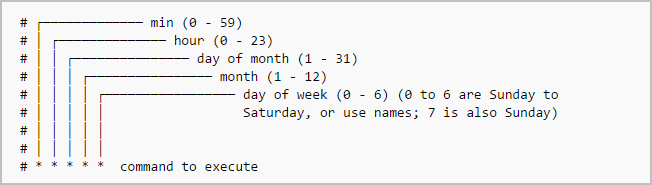
Every cron entry follows the same five-field timing format, followed by the command to run:
* * * * * command_to_executeReading those five fields from left to right:
*is a wildcard meaning “every”- Minute (0 to 59)
- Hour (0 to 23)
- Day of the month (1 to 31)
- Month (1 to 12)
- Day of the week (0 to 7, where both 0 and 7 mean Sunday)
So to run a command at 01:32 on the 17th of January, regardless of the day of the week:
32 01 17 01 * command_to_executeOr to run it at 20:14 every Monday in March:
14 20 * 03 1 command_to_executeThe day of the week can also be written as an abbreviation, which reads more clearly than a number:
14 20 * 03 mon command_to_executeRunning a Script
You can point a cron entry at a script rather than a single command:
32 01 17 01 * /path/to/your/script.shJust make sure the script is executable first, or cron won’t be able to run it:
chmod +x /path/to/your/script.shRemoving a Crontab
To clear your crontab entirely, use:
crontab -rEditing Another User’s Crontab
To edit a different user’s crontab, use sudo and specify the user with -u:
sudo crontab -u root -eThis is useful for scheduling jobs as a service account, such as www-data or apache, rather than your own user.


Leave a Reply